Navigating Vibriowatch
In this section, we will describe:
How to search for an isolate in Vibriowatch and see its report page.
Displaying metadata on the tree for a collection of isolates.
How to search for an isolate in Vibriowatch and see its report page
If you learn better by seeing rather than reading, see the video on finding H22’s report page in Vibriowatch, for an example of searching for the isolate H22 collected in Haiti in 2022, which was sequenced by Rubin et al 2022.
You can search for an isolate in Vibriowatch by searching by its isolate/strain name(s). For example, isolate HCUF_O1 is an isolate collected in Haiti in 2010, sequenced by Hasan et al 2012.
You can search for isolate HCUF_01 in Vibriowatch by clicking on the three small horizontal bars at the top left of the Pathogenwatch website:

This will bring up a menu:
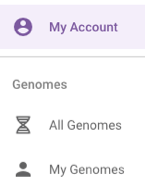
If you click on ‘All Genomes’ in the menu, you will then see a list of all the genomes in Pathogenwatch.
To just select V. cholerae genomes, click on ‘Genus’ in the menu that now appears:
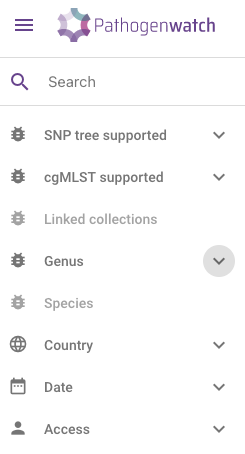
Then select ‘Vibrio’, to select just genomes from V. cholerae. You will now see a list of the approximately 6000 V. cholerae genomes (just showing the top of the list here):
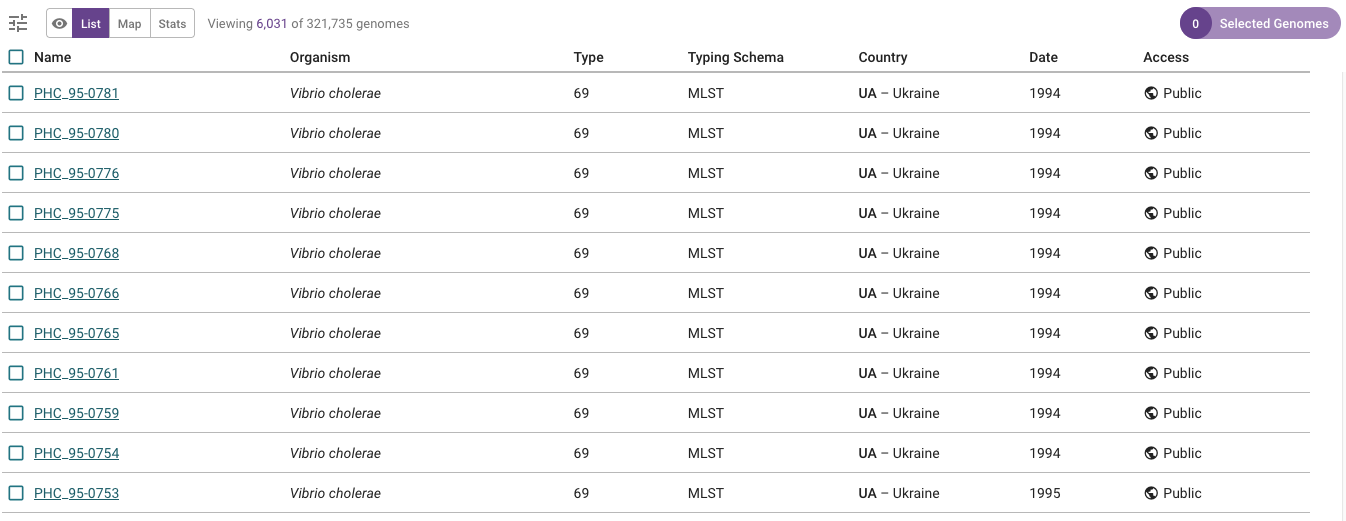
A search bar will now appear at the top left. If you type ‘HCUF’ in the search bar, it will find isolate HCUF_01:

Note that sometimes if there is a hyphen or dash in the name of an isolate, you might not find the isolate if is stored in a slightly different format in Vibriowatch. For example, HCUF_01 is stored as ‘HCUF01’ in Vibriowatch, so you won’t find it if you search for ‘HCUF_01’ or ‘HCUF-01’, but you can find it if you search for part of the name, e.g. ‘HCUF’.
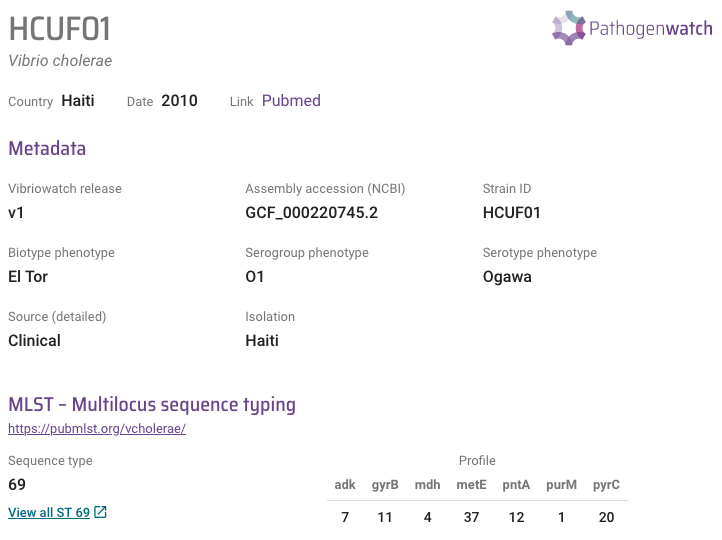
You can click on the isolate’s name (link ‘HCUF01’) to go to its ‘report page’. The report page shows the curated metadata for the isolate, as well as bioinformatics analyses of the isolate. This shows the top of the report page for HCUF-01:
How to make a collection of isolates in Vibriowatch
A nice feature of Pathogenwatch/Vibriowatch is that it is possible to make a ‘collection’ of isolates, and Vibriowatch will build a tree for the isolates in the collection, and let you display their metadata, as well as results of some bioinformatics analyses, on the tree.
If you learn better by seeing rather than reading, see the video 1 on building a phylogenetic tree for the Haiti 2022 outbreak, using Vibriowatch and video 2 on building a phylogenetic tree for the Haiti 2022 outbreak, using Vibriowatch, for an example using the assembly of the isolate H22 collected in Haiti in 2022, which was sequenced by Rubin et al 2022.
As mentioned above, a key early paper on V. cholerae genomics was by Chun et al 2009, who sequenced the genomes of 23 diverse V. cholerae isolates.
The 23 isolates sequenced by Chun et al 2009 were: MO10, B33, MJ-1236, CIRS-101, N16961, RC9, NCTC_8457, MAK757, BX330286, 2740-80, O395, V52, 12129(1), MZO-3, AM-19226, TMA21, 623-39, MZO-2, 1587, V51, RC385, VL426, and TM11079-80.
To make a collection in Vibriowatch for these isolates, we can search for the isolates one-by-one (in the same way that we searched for HCUF-01 above). To include the isolate in the collection, when we find the isolate, we tick the box on the left of the isolate’s name:

When you have searched for and ticked the boxes for all 23 of the genomes sequenced by Chun et al 2009, you will see a purple button the top right saying ‘23 Selected Genomes’:
If you click on this purple button you will see another purple button saying ‘Sign in to create collection’:
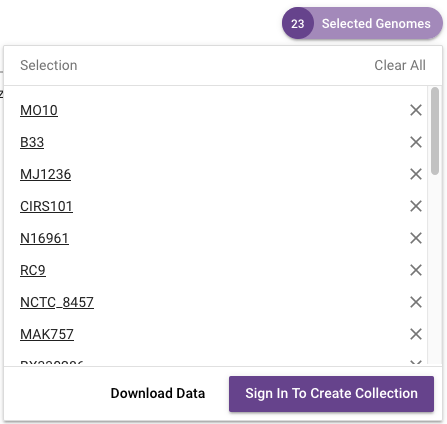
You will need to now sign into the Pathogenwatch/Vibriowatch website. To make a collection on the Pathogenwatch/Vibriowatch website, it’s necessary to make an account first, for example, using your email address as your login.
Once you have logged in, if you now click on the purple button saying ‘23 Selected Genomes’, you will see a purple button ‘Create collection’. You will need to fill in a title (e.g. “My collection of Chun et al’s genomes”) and brief description of the collection, and a PubMed id (optional). if you like:
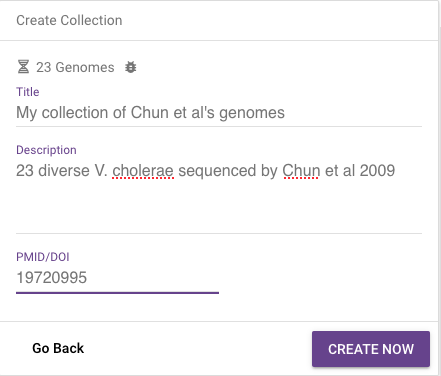
The collection will only be visible in your private Vibriowatch account, so only you will be able to view it. Now click on the ‘Create now’ purple button to create the collection.
Vibriowatch will now build the collection (including a phylogenetic tree for the collection), which may take a little while. You may not see anything happen immediately, as sometimes Vibriowatch takes a few minutes to create a collection. What you can do is to go away and make yourself a cup of tea or do something else for 5 minutes. Then come back, and go to the Pathogenwatch homepage again and this time, if you click at the symbol of three horizontal bars at the top left of the Pathogenwatch website:
This will bring up a menu:
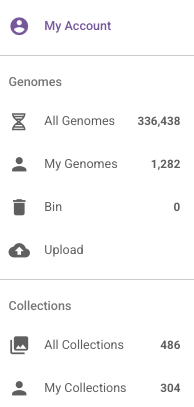
And this time click on ‘My collections’ in the menu. This should show you a list of the collections that you have made in your private Pathogenwatch account. One of these should be the collection that you have just made, e.g. “My collection of Chun et al’s genomes”.
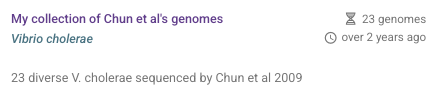
If you move your mouse over the list of collections, when you move your mouse over the white space below the name of your new collection (e.g. “My collection of Chun et al’s genomes”), you should see buttons pop up that say “LIST GENOMES” and “VIEW COLLECTION”. If you click on the “VIEW COLLECTION” button just below the name of your new collection, this should bring you to a page for the collection.
You should see a big purple button ‘View tree’ in the middle of the map of isolates for your collection. If you click on the purple button, you will see the tree of your isolates in the left panel, the map of where your isolates were collected in the right panel, and the timeline for when your isolates were collected below that:
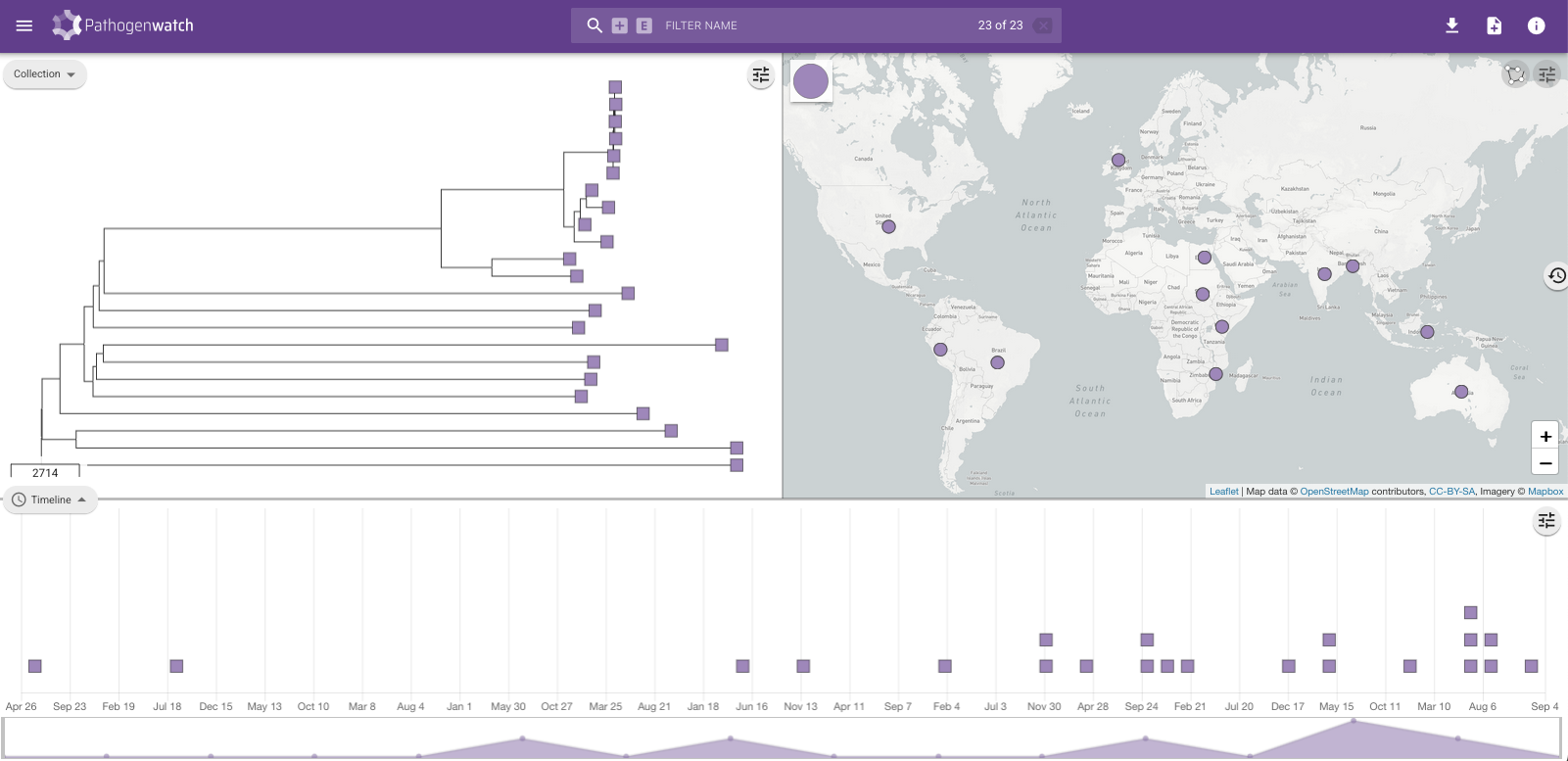
If you make a collection of isolates in Vibriowatch, it will be visible only to yourself in your private Vibriowatch account, and nobody else can see it.
Finding your list of collections in Vibriowatch
If you want to find a collection that you previously made in Vibriowatch, you can see a list of all your collections by clicking on the three horizontal bars at the top left of the Vibriowatch website:
This will bring up a menu:
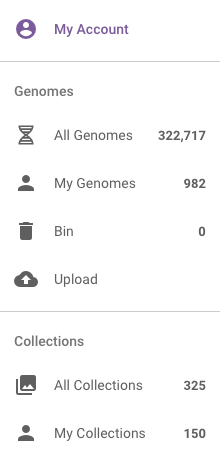
If you click on ‘My collections’ in this menu, it will bring up a list of all your collections. If you move your mouse over a particular collection, it will bring up buttons showing a bin (which if you click on it, will delete the collection), a button saying ‘LIST GENOMES’ to see a list of genomes in the collection, and a button saying ‘VIEW COLLECTION’ to see the tree and map for that collection:

Public collections in Vibriowatch
We have made many public collections of V. cholerae isolates in Vibriowatch. Each collection contains the isolates sequenced in a particular published paper. For example, we have made a public collection for isolates sequenced by Chun et al 2009.
To see the list of all the public collections, click on the three small horizontal bars at the top left of the Pathogenwatch website:
This will bring up a menu:
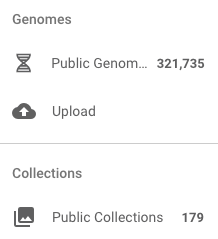
If you click on ‘Public Collections’ in the menu, you will then see a list of all the publicly visible collections in Pathogenwatch.
To just see only collections with V. cholerae genomes, click on ‘Genus’ in the menu that now appears on the left, and then select ‘Vibrio’:
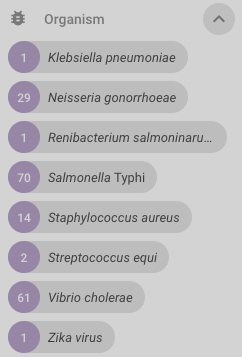
You will now see a list of the approximately 60 public collections for V. cholerae that we have made (just showing the top of the list here):
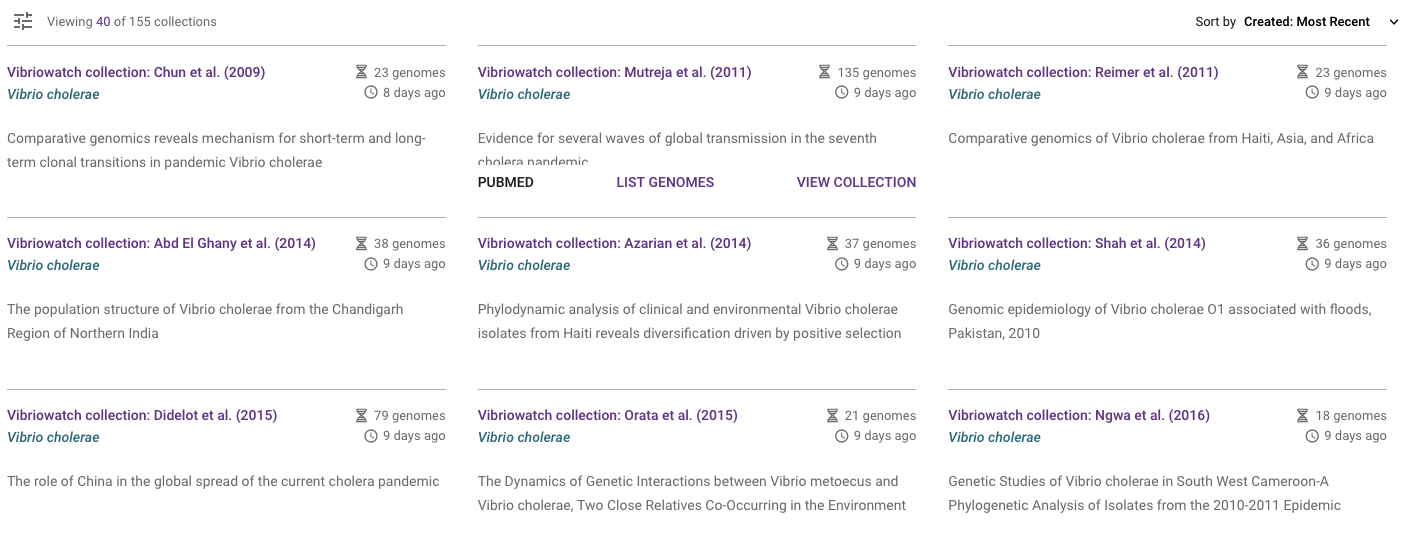
If you hover your mouse over a collection, you can click on the ‘LIST GENOMES’ button to see a list of genomes for that collection, or the ‘VIEW COLLECTION’ button to see the tree for the collection, or the ‘PUBMED’ button to see the original paper in PubMed:

In fact, we have made a public collection for the isolates from Chun et al 2009, and you can view the public collection for Chun et al by clicking on the ‘VIEW COLLECTION’ button under the Chun et al collection in the list of public collections. Alternatively you can click on the link in this sentence to see our public Vibriowatch collection for Chun et al.
Exploring the timeline for a collection of isolates
When you are looking at a particular Vibriowatch collection (e.g. one of your own private collections, or our public Vibriowatch collection for Chun et al), the timeline in the bottom panel for the collection of isolates shows the day of collection. To see instead the year of collection, click on this small ‘Settings’ symbol at the top right of the timeline panel:

You will see a menus appear with settings for the timeline:

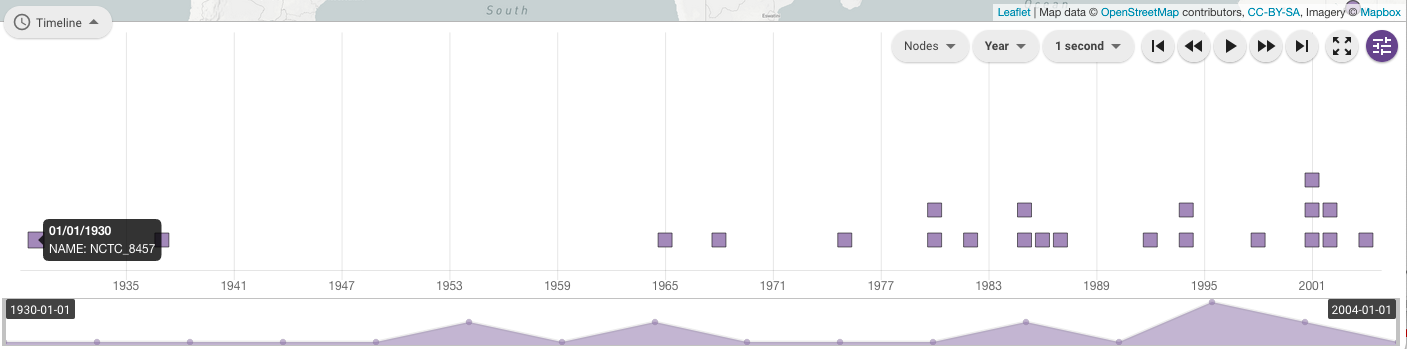
To change from day of collection to year of collection, click on ‘Day’ in the settings menu, and choose ‘Year’. You will now see the timeline in terms of year of collection of the isolates. For the collection containing isolates sequenced by Chun et al 2009, you can see that the isolates were collected between 1930 and 2004.
If you hover your mouse over the box representing a particular isolate, you will see the year of collection of that isolate pop up over the box representing the isolate:
Exploring the tree for a collection of isolates
When you are looking at a particular Vibriowatch collection (e.g. one of your own private collections, or our public Vibriowatch collection for Chun et al), you will see a phylogenetic tree for the isolates in the left-hand panel. This tree is built using the neighbour-joining algorithm, a relatively fast and reliable method for building phylogenetic trees:
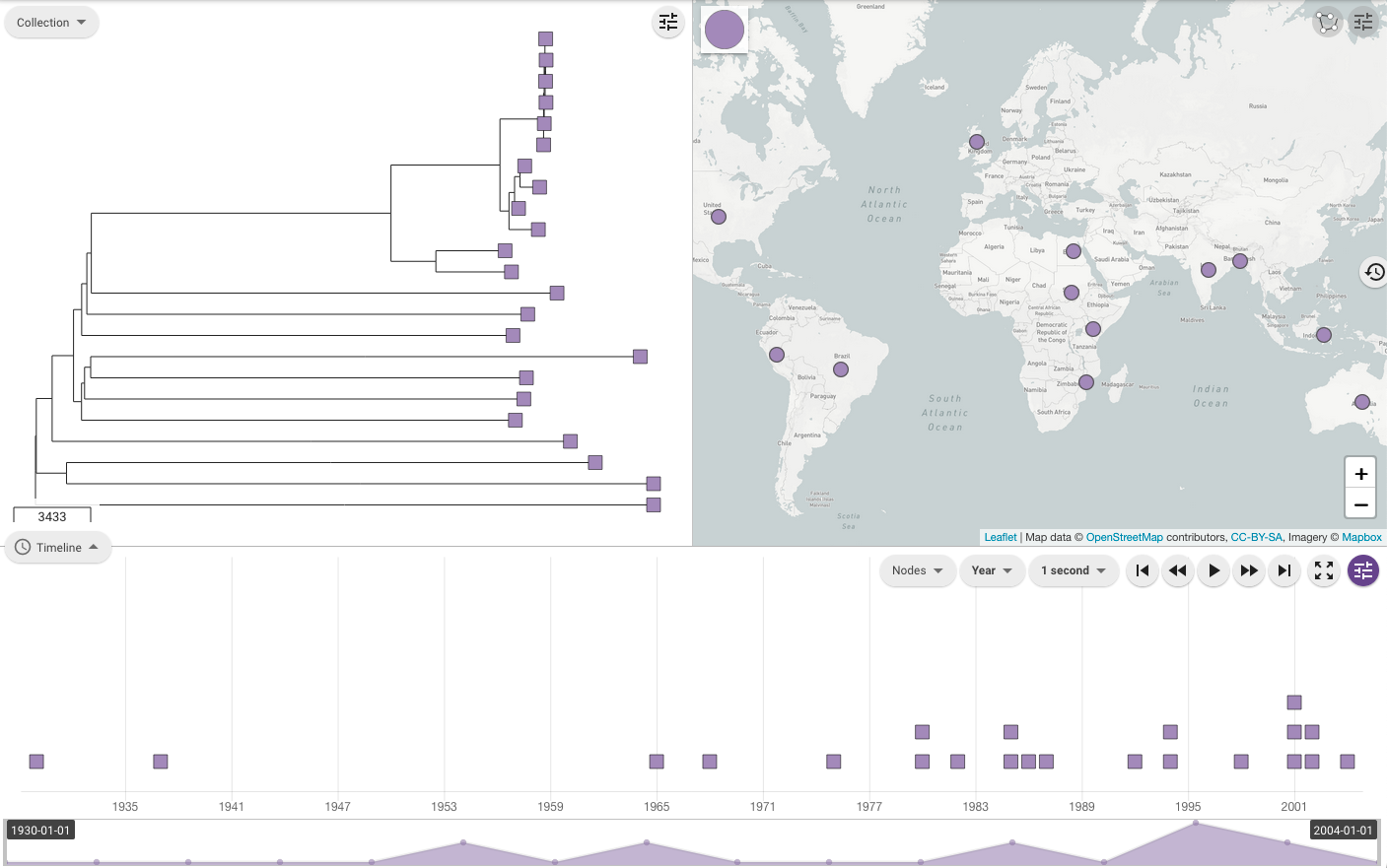
By default, the isolate names are not shown on the tree. To show the isolate names on the tree, click on the small ‘Settings’ symbol at the top right of the tree panel:
You will see some menus appear with settings for the tree:

To show the isolate names on the tree, click on the ‘Nodes and labels’ menu that appeared, and slide the ‘Show leaf labels’ slider to the right:
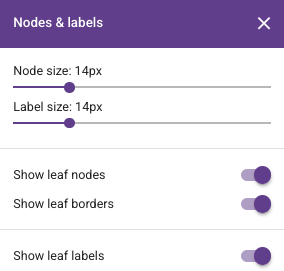
You should now see the isolate names appear on the tree. You can click on the ‘X’ in the corner of the menu to hide that menu.
To see the whole of your tree, you may have to zoom out by rolling the rollerball on your mouse away from you:
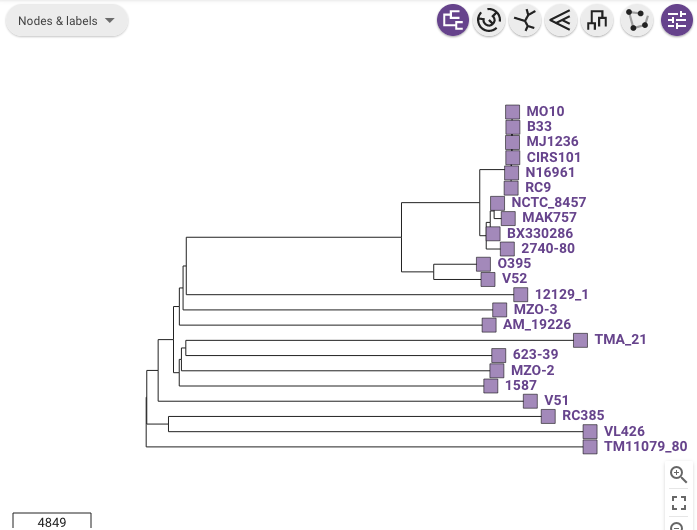
Similarly, you can zoom in on the tree by rolling the rollerball on your mouse towards you. Also, if you click on the picture of the tree and drag to the right/left or up/down, it will let you view different parts of the tree.
Displaying metadata on the tree for a collection of isolates
Instead of showing the isolate name beside the leaves (tips) of the tree, you can instead show some of the curated metadata that was uploaded to Vibriowatch with the genome sequences.
To do this, click on the button saying ‘Timeline’ below the tree, and instead select ‘Metadata’ from the menu that appears:
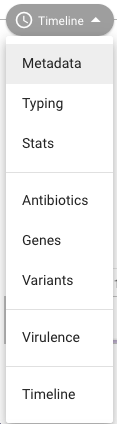
Now instead of the map, below the tree you will see a panel with curated metadata:
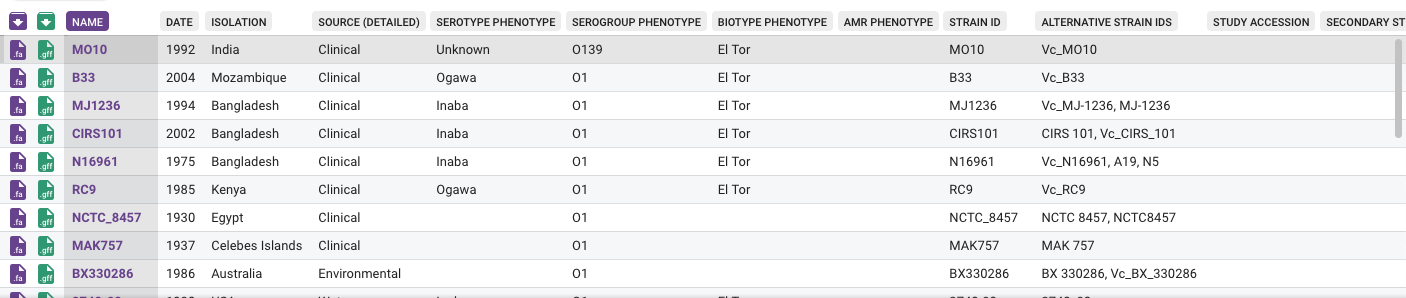
You can click on a column that you want to display beside the tree instead of the isolate names, e.g. ‘serogroup_phenotype’ to show the experimentally determined serogroups:
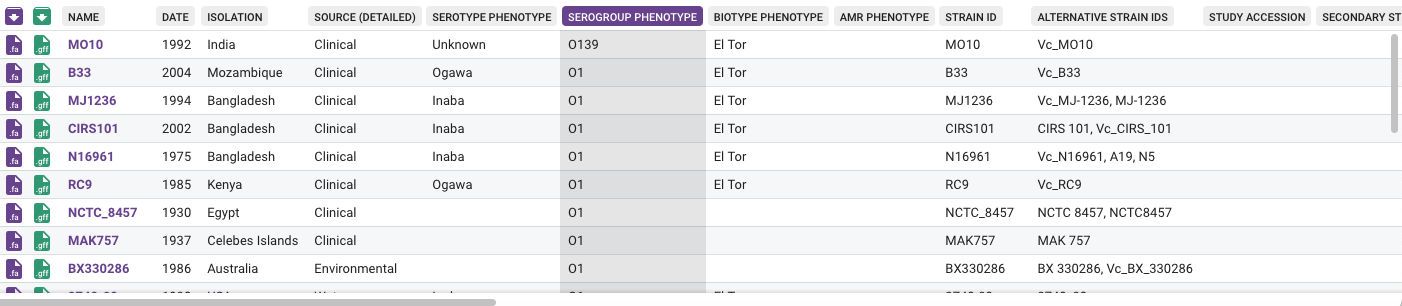
You will now see the serogroups displayed beside the leaves of the tree in the tree panel:
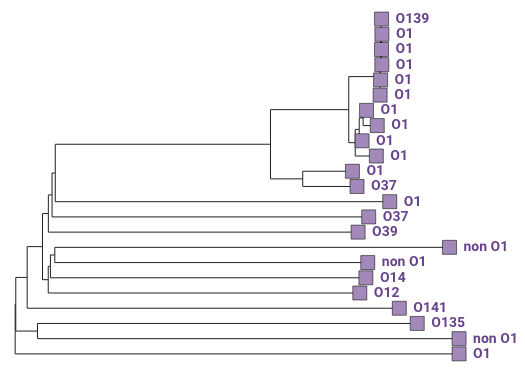
For the collection containing isolates sequenced by Chun et al 2009, we can see that the isolates collected by Chun et al 2009 had a variety of serogroups, including O1, O139, O37, O39, etc. Some of the isolates were just assigned serogroup ‘non O1’, so it was only determined that they were not O1, but their exact serogroup was not determined. Isolates belonging to the current pandemic lineage (7PET lineage) have been found to be serogroup O1, or sometimes O139.
CholeraBook
If you would like to learn more about cholera genomics, you may also be interested in our Online Cholera Genomics Course (CholeraBook).
Contact
I will be grateful if you will send me (Avril Coghlan) corrections or suggestions for improvements to my email address alc@sanger.ac.uk